
NFS Underground
6 czerwca 2021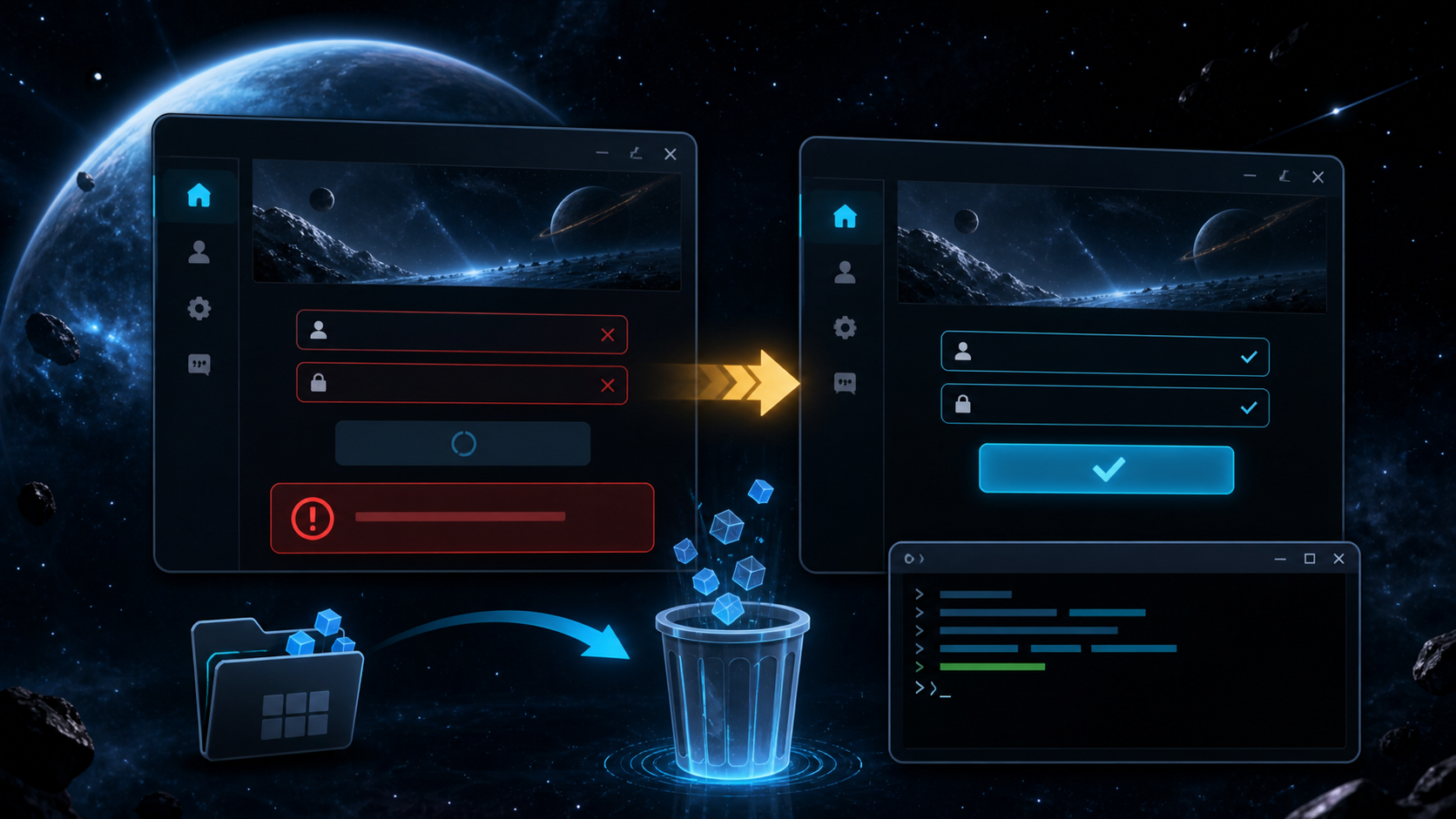
If the Elite Dangerous launcher says your credentials are incorrect even though you are using the right email address and password, the problem may be caused by corrupted local launcher data. Clearing the launcher’s local cache often resolves the issue.
Before you begin
Close the Elite Dangerous launcher completely. The command below removes the local Frontier_Developments_Ltd folder from your Windows user profile. It does not uninstall the game, but the launcher may need to recreate its settings and cached data the next time it starts.
Fix the incorrect credentials error
- Right-click the Windows Start button.
- Select Run.
- Type
CMDand press Enter.
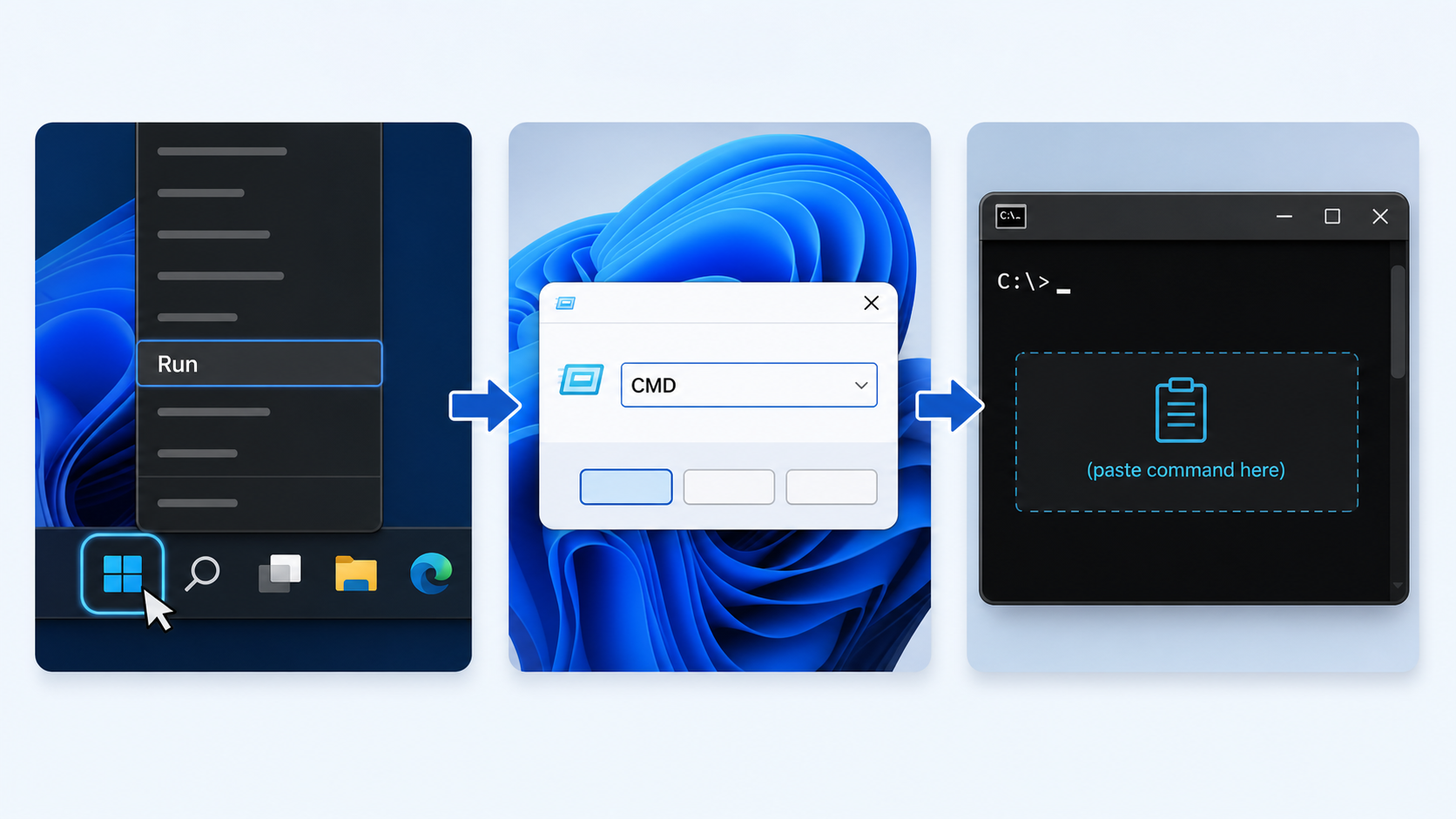
- Copy the following command, paste it into the Command Prompt window, and press Enter:
if exist "%LOCALAPPDATA%\Frontier_Developments_Ltd" RMDIR /s /q "%LOCALAPPDATA%\Frontier_Developments_Ltd"- Close Command Prompt.
- Start the Elite Dangerous launcher again and sign in with your usual credentials.
The launcher will recreate the removed local folder automatically. In many cases, this clears the stale or corrupted data that caused valid login details to be rejected.
Still unable to sign in?
Double-check that you are using the correct Frontier account and that there are no extra spaces in your email address or password. You can also reset your Frontier password or contact Frontier Support if the error continues.
Disclaimer: This guide involves deleting local launcher data. Follow the steps carefully and make sure the launcher is closed before running the command.
